Adding & viewing repositories
Repositories are where Companion does its work. This page covers how to connect them and how to browse what you've added.
Adding a repository
You add repositories from Settings → Repositories.
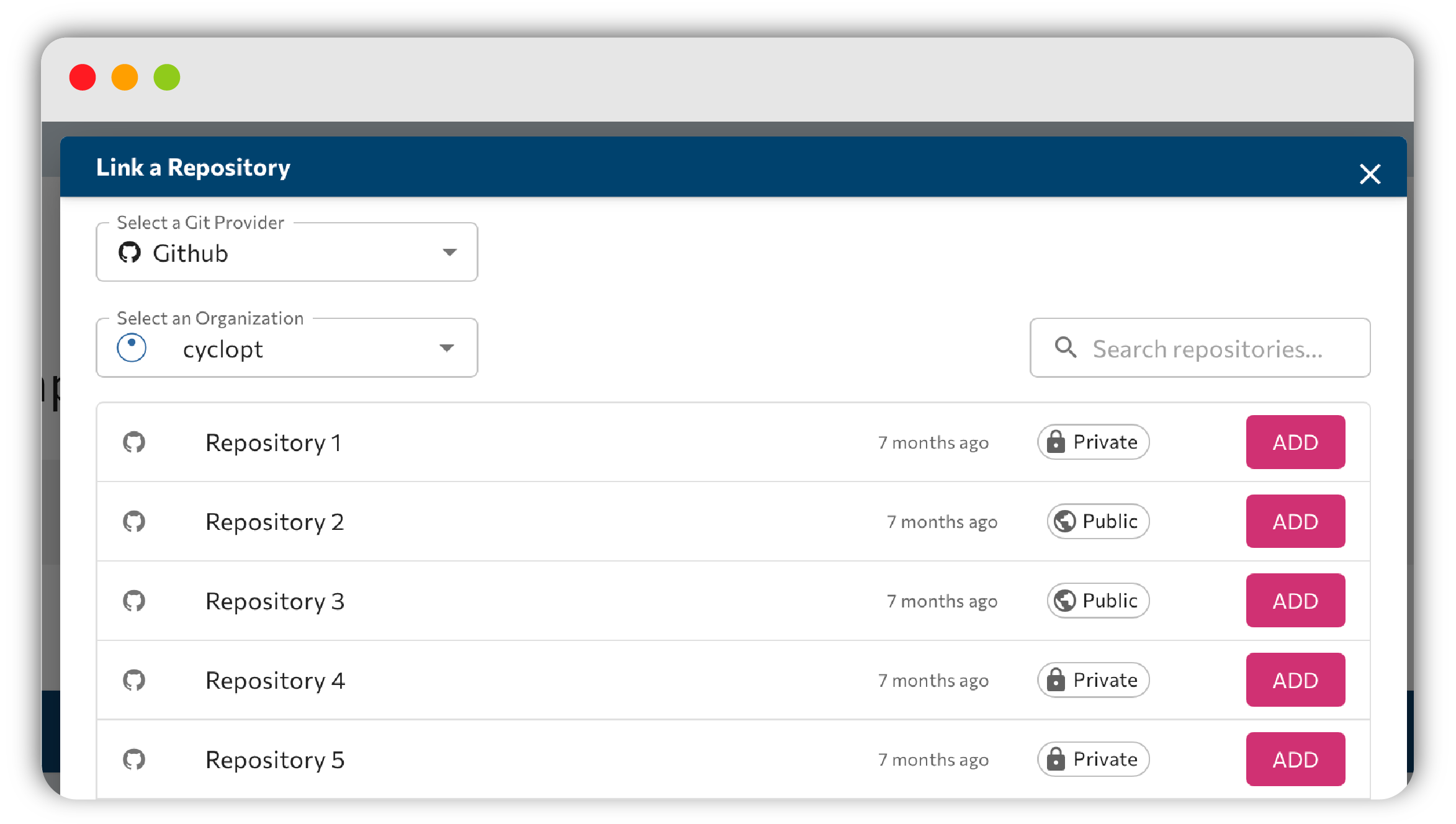
Click Add Repository to open the Link a Repository modal:
- Choose a git provider (only if you are connected with multiple git providers).
- Pick an organization.
- Search and select the repo (for GitHub, GitLab and Bitbucket), or paste an Azure URL.
- Click ADD.
- Do not forget to click SAVE PREFERENCES when you are done.
Per-repo configuration
Each repository can be fine-tuned from its Edit modal:
- language
- production / staging branch
- analysis root folder: either Whole repository or a specific subfolder
- for C#, the csProjects to analyze
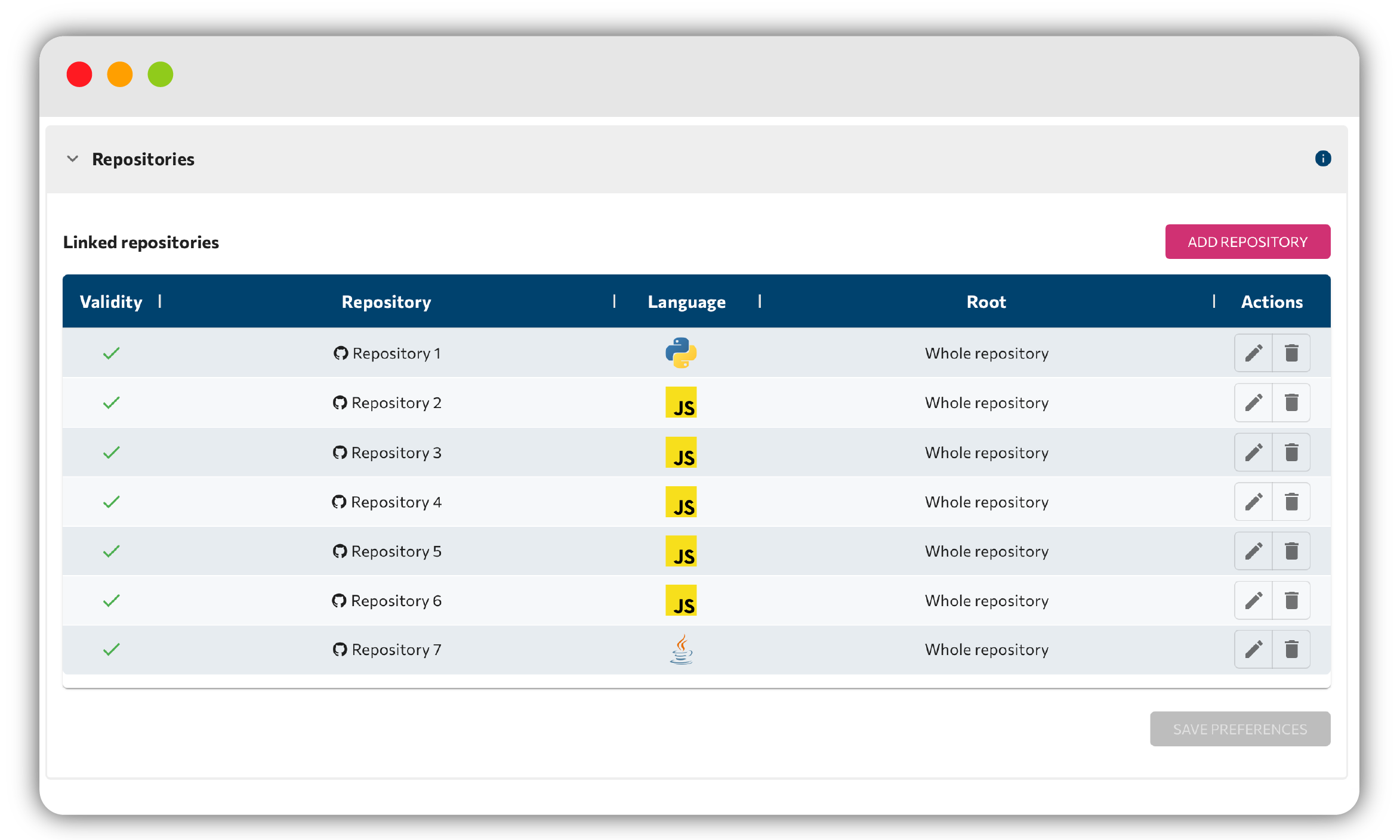
The repositories table lists everything you've connected, with columns for Is Valid, Repository, Language, Root and Actions (Edit / Delete).
Every commit that gets analyzed counts against your plan's monthly limit, keep an eye on the Remaining Commits counter.
The Repositories tab
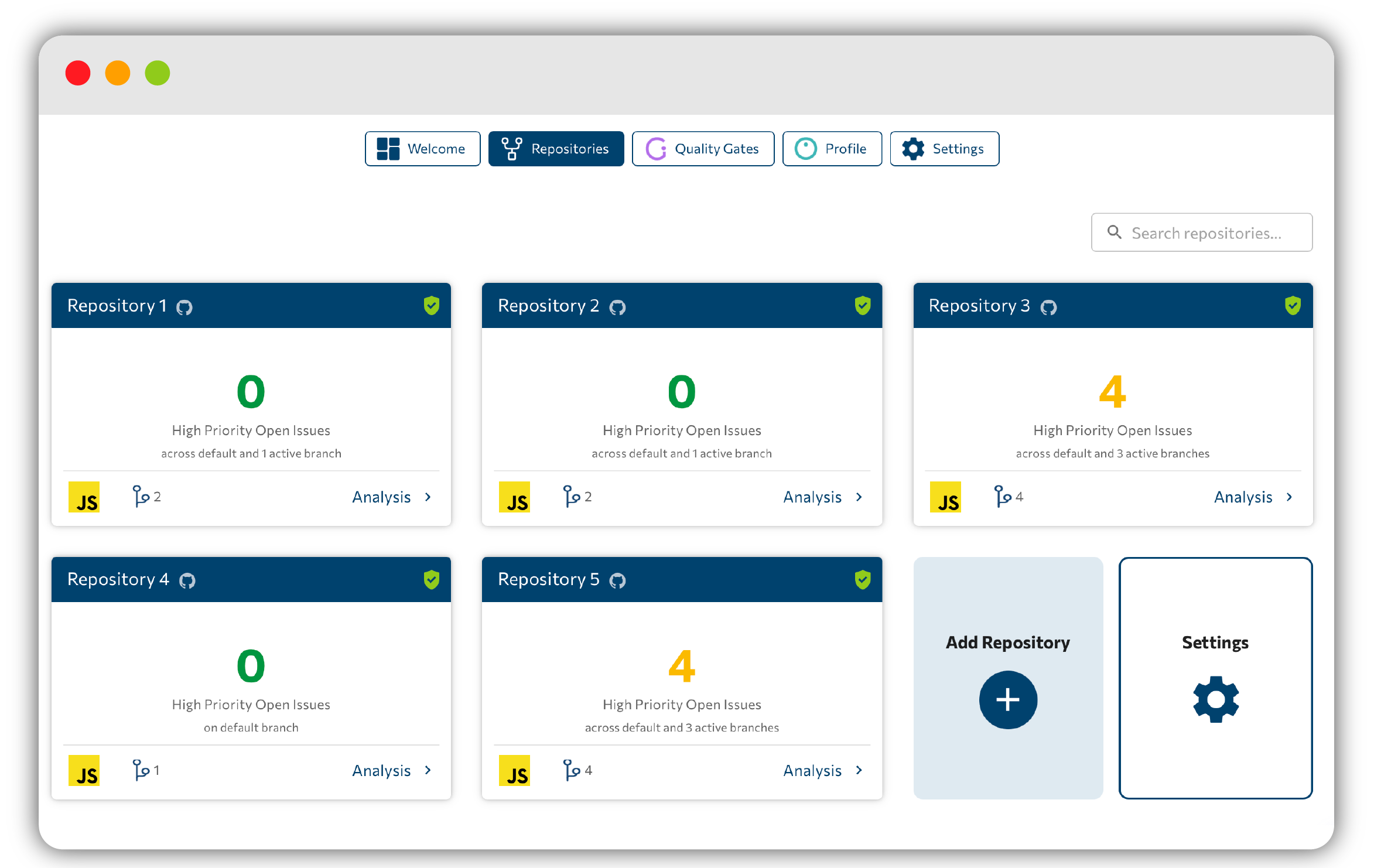
The Repositories tab is a searchable, paginated list of repo cards. Each card shows:
- the repo name and git-provider icon
- a language chip
- branch activity
- a quality summary and the Quality Gate pass/fail status
The quality card aggregates High Priority Open Issue(s) across the default and active branches. When there's nothing to show, you'll see the empty state "No recent activity found".
A footer Analysis link opens the full analysis page for that repository.
Next steps
Dig into results in Code analysis, or fine-tune your connections and notifications in Settings.