Quality Gates
Quality Gates turn your quality standards into enforceable rules. Each gate defines pass/fail conditions that are checked on every analysis, so risky code is flagged before it merges — whether it was written by humans or AI.
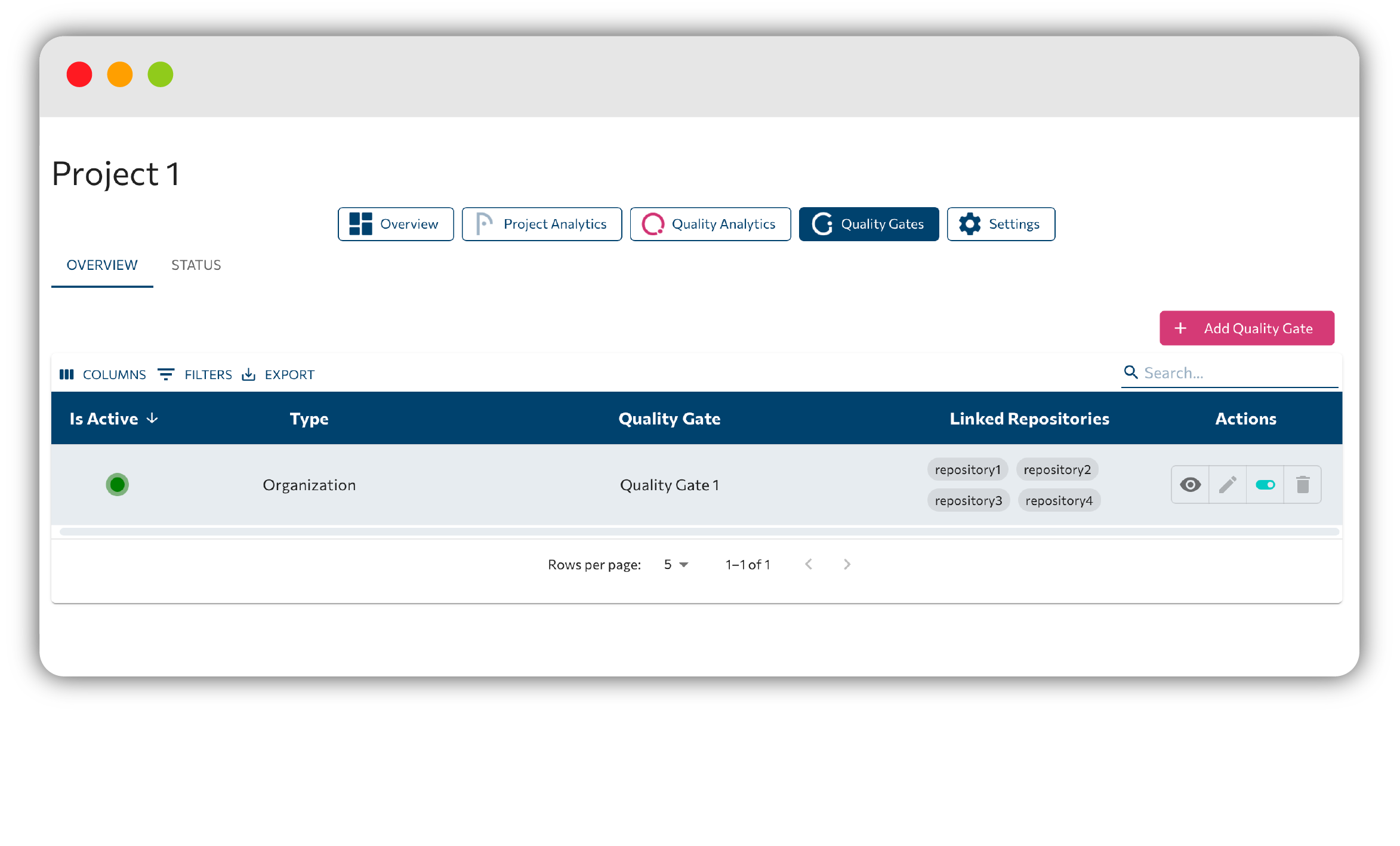
Open a project and select the Quality Gates tab. It has two sub-tabs: Overview and Status.
Overview
The Overview sub-tab lists every gate that applies to the project in a table:
- Is Active: shows a live pulse while a gate is running.
- Type: either Organization or Project.
- Quality Gate: the gate's name.
- Linked Repositories: chips for the repositories the gate covers.
- Actions: Preview, Edit, Enable/Disable, and Delete.
The table polls for updates roughly every 10 seconds, so status stays fresh without a refresh.
Only admins can add gates: you will see the tooltip "Only admins can add Quality Gates!" otherwise. Organization gates are read-only inside a project: "To edit an organization Quality Gate go to Organization Settings!". Deleting is permanent.
Status
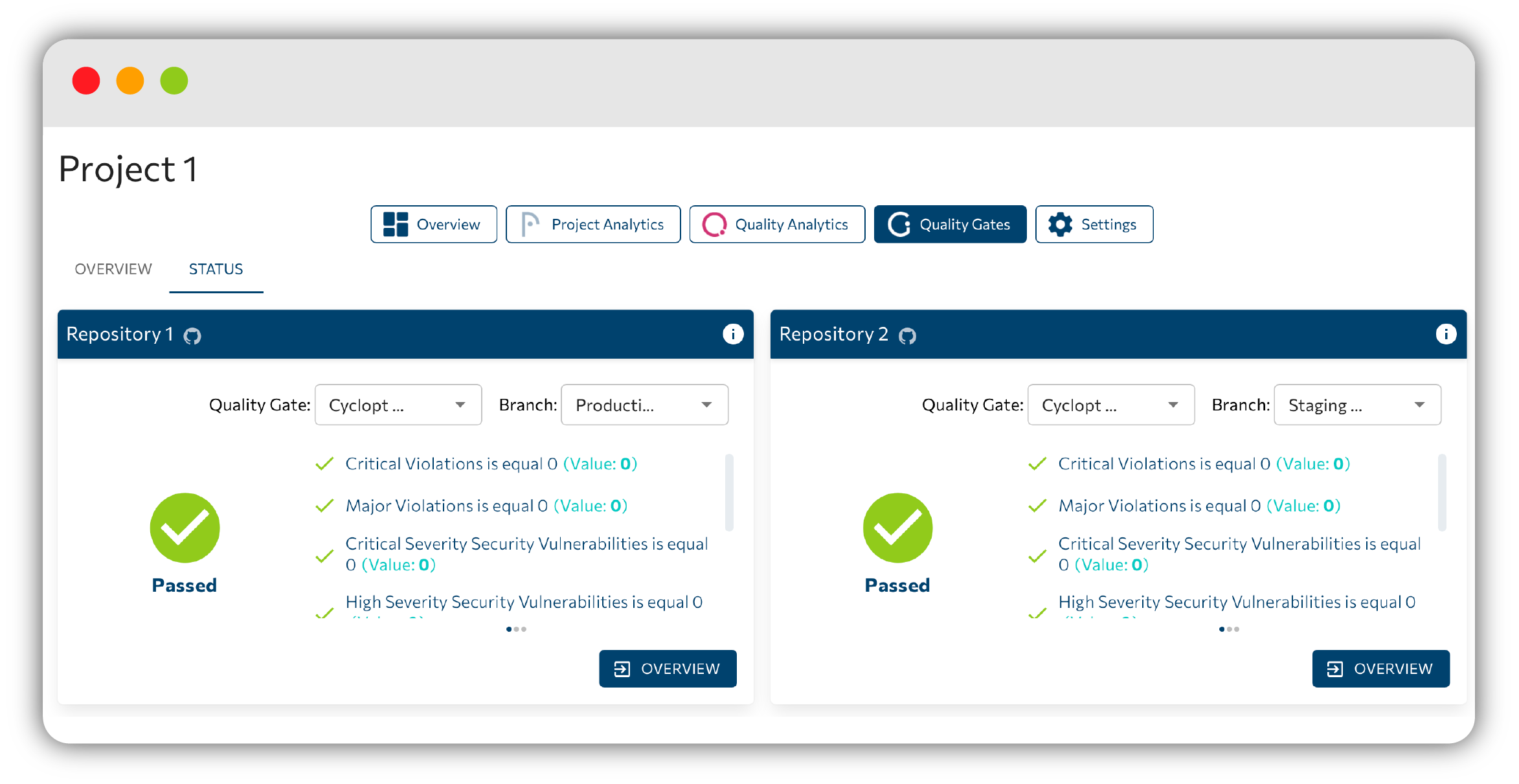
The Status sub-tab shows a QualityGateStatus card per repository. Pick a Quality Gate and a Branch, and the card shows:
- A big Passed / Failed / Not Computed indicator.
- Each tested condition as ✓ or ✗, written as metric operator threshold (Value: X).
If a gate has not run against the selected branch yet, you will see "No Result found for the selected Quality Gate! Results will be updated on new Analysis!".
Creating or editing a gate
Adding or editing a gate opens the gate form.
Name
"Give your quality gate a descriptive name.": this is how the gate appears in the Overview table and Status cards.
Use a Template
On team projects you can optionally Use a Template ("Select a template to create a new quality gate with predefined quality checks.") — to start from a ready-made set of conditions.
Linked Repositories
"Select which repositories and branches this gate applies to. By default, Production and Staging branch are selected." Two checkboxes speed up broad coverage:
- Apply to newly added repositories
- Apply to all branches of each repository
Each repository also has an accordion where you choose scope: Production Branch, Staging Branch, All Branches, or "or select specific branches".
Conditions
"Define the rules that must pass for this gate to succeed. All conditions must be met (AND logic)." Build each condition from a metric, an operator, and a threshold, then select Add.
Operators: is less than, is less or equal than, is equal, is equal or greater than, is greater than.
Metric choices:
- Critical / Major / Minor Violations and Total Violations
- Duplicate Code (%)
- Total / Critical / High / Moderate / Low Security Vulnerabilities
Use undo changes to revert, and Done to save the gate.
Organization-wide gates and templates
Organizations can define org-wide gates and reusable Templates from Organization → Quality Gates. Projects then consume these, keeping standards consistent across every team without redefining the same rules.
Panorama is the configuration and reporting surface for Quality Gates. The actual enforcement and blocking of merges happens through the Cyclopt API
Next step
Let Panorama tell you when something slips — set up Early alerts.